
Getting Started
FitKit Pro centers on eight primary areas: Tempo, Metronome, Tabata, EMOM, Timer, Playlist, Insights, and Evidence. The first five are standalone timing tools, Playlist chains those tools into complete workouts, Insights tracks what you completed, and Evidence explains the methodology behind the protocols.
- Pick the tool that matches what you’re about to do.
- Set its parameters by hand.
- Start the timer and let the audio and haptic cues carry you through it — the screen can be locked and the cues still play.
- If you run the same routine repeatedly, build it once as a Playlist so one tap runs the whole thing.
- Check Insights afterward to see your history and any frequency goal you’ve set.
You can customize the visible tab or sidebar order from Settings → Tab Order. This guide uses the canonical order above so each tool is easy to find consistently.
New to FitKit Pro? Start with the Quick Start for the visual tour, then come back here for the full detail on each tool.
Tempo
Tempo paces a resistance exercise across four independently timed phases:
Set each phase’s duration separately — a slow eccentric for control work, a quick concentric with a longer rest for strength — and audio cues mark every phase change so you can watch your form instead of a clock.
| Parameter | Range | Default |
|---|---|---|
| Concentric | 1–15 sec | 1 sec |
| Isometric | 0–15 sec | 1 sec |
| Eccentric | 1–15 sec | 1 sec |
| Rest (between reps) | 0–15 sec | 0 sec |
| Reps | 1–50 per set | 10 |
| Sets | 1–25 | 3 |
| Recovery (between sets) | 5 sec–5:59 | 0:30 |
- Swap mode reverses the concentric and eccentric phases for eccentric-first work — the visualization flips 180° and the audio metronome cues swap with it, so the cues always match what’s on screen.
- Show Sets toggles the set counter in the progress view; it turns on automatically once you set sets above 1.
- Choose a visualization style in Settings: a 1D horizontal track, or a scrolling 2D path that shows the whole workout’s phase structure at a glance.
- The initial countdown (0–10 sec, shared across every timing tool) can be set to 0 to skip it and start immediately.
Inside a Playlist, Tempo’s rewind control distinguishes between rewinding to the start of the current rep and rewinding to the start of the whole exercise, rather than collapsing both to one action.
Metronome
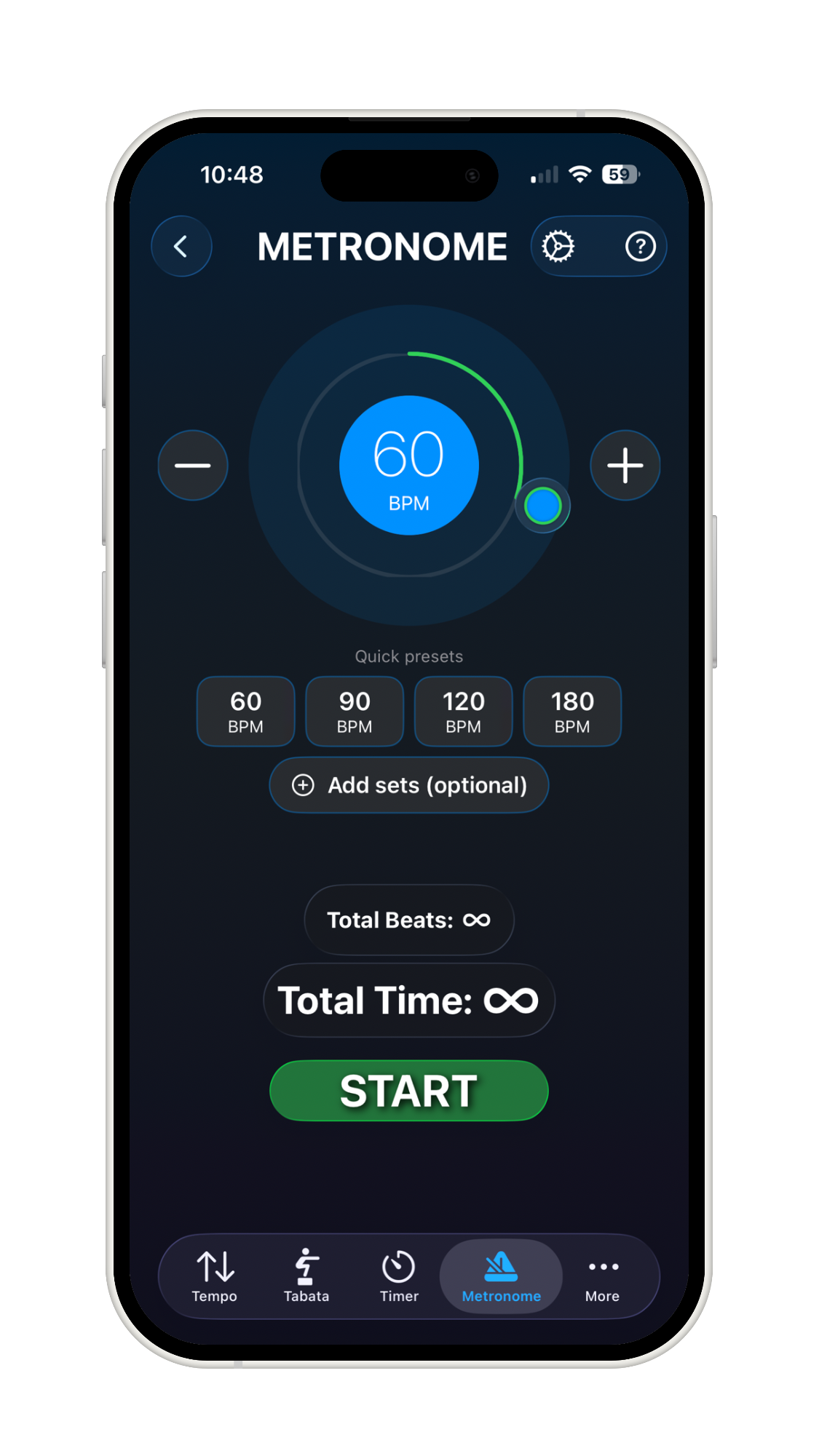
Metronome plays a steady beat at the speed you choose, from 1 to 200 beats per minute, and stays on tempo for as long as you run it. Use it to hold a running pace or for any repetitive drill where the beat itself is your cue.
Exactly one of three duration modes is active at a time:
- Infinite — runs continuously until you stop it. Forces sets to 1 and can’t be added to a Playlist because there is no fixed end to hand control back.
- Timed — runs for a set duration, then stops or moves to the next set.
- Beats — runs for a target number of beats instead of a duration, useful when you care about rep count more than elapsed time. Recovery periods between sets stay time-based even in Beats mode.
| Parameter | Range | Default |
|---|---|---|
| BPM | 1–200 (1 BPM steps) | 60 |
| Timed duration | 5 sec–60:59 | 1:00 |
| Beats count | 4–1000 beats | 32 |
| Sets | 1–30 | 1 |
| Recovery (between sets) | 5 sec–15:59 | 0:30 |
- Select BPM by dragging the circular slider, tapping the +/− buttons (press and hold to accelerate), or tapping a quick preset — long-press any preset to overwrite it with the current BPM.
- Turn on infinite mode when you don’t know how long you’ll need the beat to run.
- Infinite-mode sessions don’t play a completion sound, since there’s no defined end to announce. Timed and Beats mode can both be added to a Playlist.
Tabata
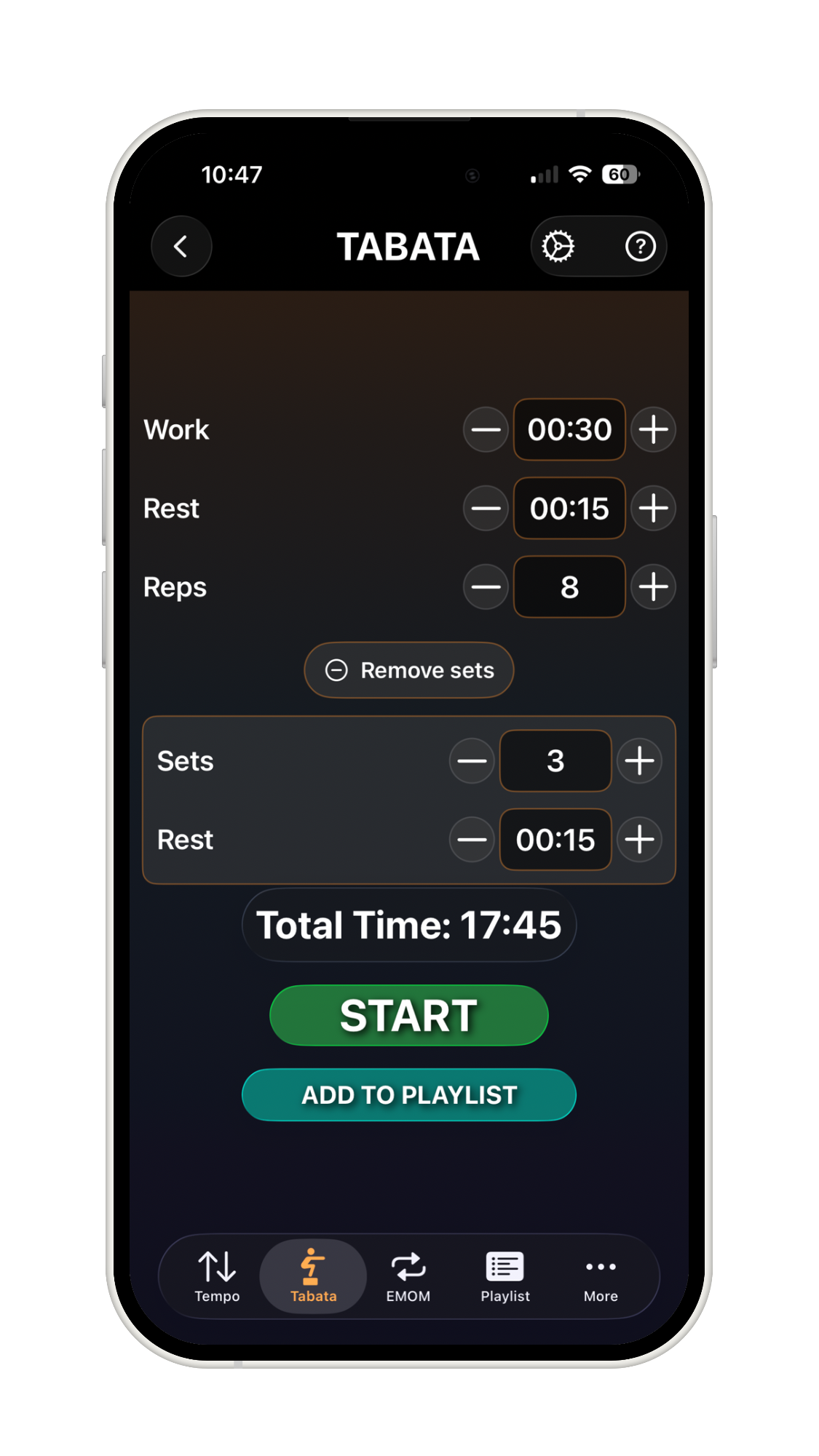
Tabata runs work/rest intervals across as many rounds as you set — the classic high-intensity interval training format pioneered by Dr. Izumi Tabata — with optional multi-set programming and a recovery period between sets. Visual progress and audio cues tell you when to go and when to rest without needing to watch the screen.
| Parameter | Range | Default |
|---|---|---|
| Work period | 5 sec–60:59 | 0:30 |
| Rest period | 5 sec–60:59 | 0:30 |
| Reps (rounds per set) | 1–50 | 10 |
| Sets | 1–50 | 1 |
| Recovery (between sets) | 5 sec–60:59 | 0:30 |
The classic Tabata protocol is 20 seconds work, 10 seconds rest, 8 rounds, 1 set — a 4-minute workout. The Rest row only appears when Reps is greater than 1, and the Recovery row only appears once Sets is turned on above 1.
EMOM
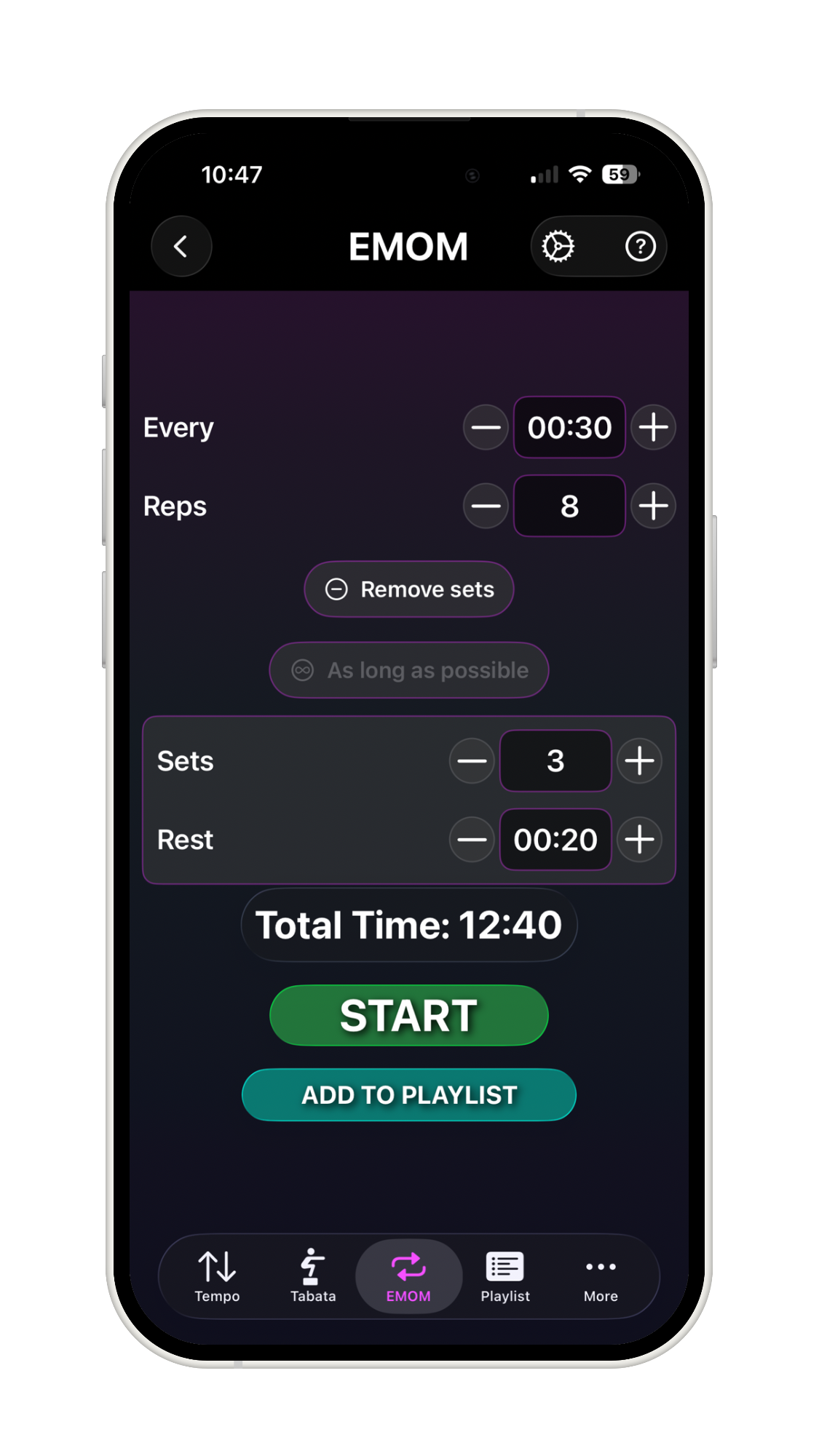
EMOM — “every minute on the minute” — starts a new rep at the top of every interval, with set and rep tracking built in so you always know which round you’re on. Unlike Tabata, EMOM has no separate tracked rest phase: whatever time is left in the interval after you finish your work is your rest, self-paced rather than timed.
| Parameter | Range | Default |
|---|---|---|
| Every period | 5 sec–60:59 | 0:30 |
| Reps per set | 1–50 | 10 |
| Sets | 1–50 | 1 |
| Recovery (between sets) | 5 sec–60:59 | 0:30 |
Turn on As Long As Possible to loop the every-period indefinitely instead of stopping after a fixed rep count — useful for max-rep challenges. It replaces the rep counter with an elapsed-time display and runs until you stop it manually.
Timer
Timer covers workouts that don’t fit a repeating interval. Both modes count down from the same configured duration — what differs is the cue and behavior at zero:
- Recovery — a rest period between efforts. Plays a countdown in the last 3 seconds and a “GO!” cue at zero, then automatically resets. No initial countdown, no completion overlay, and it can’t be added to a Playlist.
- For Time — a timed challenge or AMRAP window. Has an optional initial countdown before it starts, plays a halfway voice cue and a 10-seconds cue during the run if the duration is 60 seconds or longer, and finishes with a completion overlay and confetti. Only For Time logs to Insights and Apple Health, and only For Time can be added to a Playlist.
| Parameter | Range | Default |
|---|---|---|
| Duration | 5 sec–59:59 | 1:00 |
Inside a Playlist, Timer has no sets or reps to navigate, so its rewind and skip controls all end the current exercise rather than offering separate rep-level and exercise-level actions.
Playlist
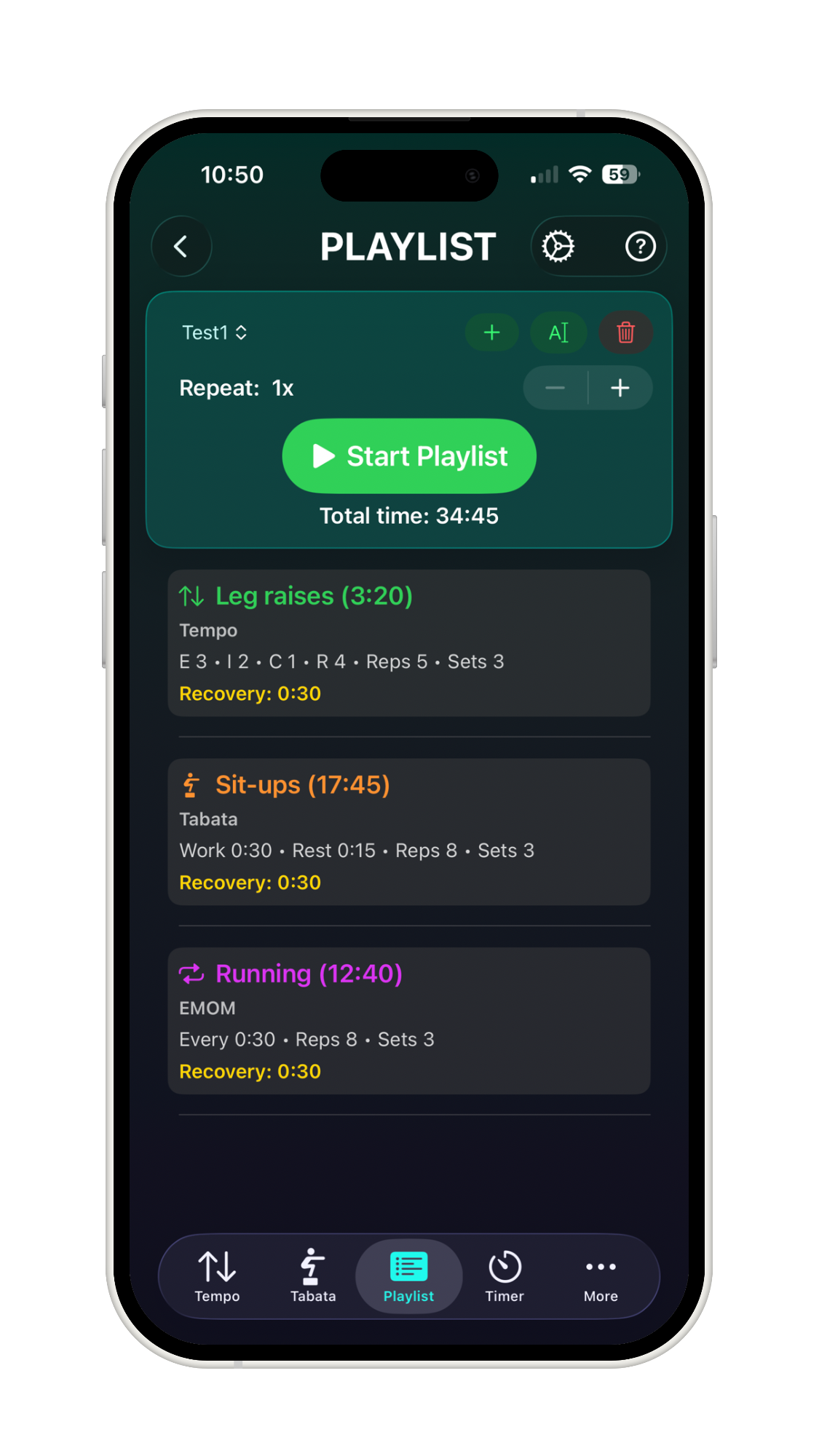
Playlist chains any of the five tools above into one ordered workout that runs end-to-end with a single tap. Each step carries its own tool, parameters, a name and optional note, a recovery period to run after it, and an optional media attachment. When a step runs inside a Playlist, that tool behaves slightly differently than it does standalone:
- Standalone completion overlays and sounds are replaced by a short “recovery” handoff cue right before the next step begins.
- The step shares the Playlist’s Live Activity rather than starting its own.
- Each tool’s own rewind/skip actions (see the per-tool sections above) let you navigate within the running Playlist.
Building a Playlist
- Create. Open the Playlist tab, tap “Add Playlist,” and give it a name.
- Add a step. Configure any timing tool the way you want it to run, then tap “ADD TO PLAYLIST” from that tool’s screen — give the step an exercise name and optional note, and set how much recovery time follows it.
- Edit a step. Tap the step in the Playlist tab; the matching tool opens with its parameters already loaded. Change what you need and tap “SAVE TO PLAYLIST” instead of adding a new step.
- Reorder steps. Tap “Edit,” drag steps into the order you want, then tap “Done.” This is also where you group steps into a circuit.
A worked example — a “Full Body Workout” Playlist mixing a standalone step, a circuit, and a closing rest period:
| Step | Tool | Settings | Recovery after |
|---|---|---|---|
| 1. Push-ups | Tempo | Concentric 1s / Isometric 1s / Eccentric 3s, 10 reps, 3 sets | 2:00 |
| 2–3. Circuit “B” (3 rounds, 1:00 rest between rounds) | — | B1 Squats (Tabata: work 0:20, rest 0:10, 8 reps) · B2 Burpees (EMOM: every 1:00, 5 reps) | — |
| 4. Cooldown hold | Timer (For Time) | 3:00 | — |
Total runtime for this example is about 24 minutes — the standalone step plus three circuit rounds (with rest between rounds) plus the closing rest period.
Playlist iCloud Sync
Turn on Playlist Sync in Settings to keep eligible playlists in sync across FitKit Pro and RehabKit on devices signed in to the same Apple Account. Sync is opt-in: the device-level setting is off until you enable it, and existing local playlists stay local-only until you choose whether to sync them.
- New playlists: synced playlist structure and settings appear on your other devices automatically.
- Deletes: deleting a synced playlist on one device deletes it from the other synced devices too.
- Per-playlist control: turning sync off for one playlist keeps the local copy but stops syncing future changes for that playlist.
- Existing playlists: when you first enable sync, choose Sync All, Choose Playlists, or Only New Playlists. Same-name playlists are not merged; each keeps its own identity.
- Videos & Photos: turn on Sync Videos & Photos if you want your exercise videos and photos to sync through iCloud too. Leave it off if you only want your playlists and their settings to sync.
Playlist iCloud Sync uses your own private iCloud storage, run by Apple. Your synced playlists and media never pass through our servers.
Running & Navigating a Playlist
Tap “START” and the Playlist runs end-to-end: exercise, then its recovery period, then the next exercise, and so on — stepping into and out of any circuits along the way for their configured rounds. If a step has an attached demonstration video, a “Show Video” button opens it right in the runner without leaving your workout.
Three controls navigate a running Playlist — all of them pause the timer and wait for you to manually resume, rather than auto-continuing, so you’re never caught off guard by a jump:
| Control | Behavior |
|---|---|
| Backward | Goes to the previous set. From Set 1 of an exercise, jumps to the last set of the previous exercise — so you can always walk backward across the entire Playlist one set at a time. |
| Forward | Advances to the next set. From the last set, advances to that exercise’s recovery period; from recovery, continues to the next exercise — which starts paused, waiting for you to resume. |
| Full Reset | Returns to the beginning of the current exercise and resets all of its sets. |
During a recovery period specifically, Backward and Forward behave a little differently: the first tap of Backward restarts the recovery period from the beginning rather than immediately jumping back an exercise — a second tap (once already at the start) is what jumps to the previous exercise’s last set. Forward during recovery always skips the remaining rest and advances straight to the next exercise, paused.
Resuming after any of these controls plays the usual 3-2-1-GO countdown first, the same as resuming after a rewind or skip on a standalone tool — it’s your cue that the workout is about to continue.
Circuits
Group consecutive Playlist steps into a circuit to repeat that whole block for a set number of rounds, with a rest period between rounds. Circuits replaced the older whole-playlist repeat option, so a single Playlist can mix one-off steps with one or more repeating circuits — for example, a warm-up, then a 3-round circuit, then a cool-down — rather than repeating everything from the top.
- Each circuit has its own round count and rest-between-rounds duration (minutes + seconds), set independently per circuit.
- A circuit needs at least 2 contiguous steps; dragging a step out of a circuit, or into the middle of a different one, is handled automatically so circuits stay contiguous rather than splitting apart.
- Circuits are labeled B1/B2/B3-style by their position among other circuits, so inserting or removing a standalone step nearby never shifts an unrelated circuit’s letter.
Keep circuit rounds reasonable — 2 to 4 is plenty for most training sessions before total volume gets hard to track.
Video & Photo Steps
Any Playlist step can carry a video or a photo demonstration — the two are mutually exclusive per step. A single “Add Media” action offers the camera, your photo library, or Files; what you pick determines whether it’s treated as a video or a photo.
- Recording: clips can be up to 2 minutes long and are recorded at a size that keeps files small. After recording, a preview lets you keep or re-record before it’s attached.
- Importing: videos you import are automatically shrunk to save space, usually by more than half, with no visible drop in quality. Photos are left as they are.
- Privacy: every video and photo is stored in encrypted form on your device, so other apps can’t read them. A step can have either a video or a photo, not both — adding one replaces the other.
A step’s video opens the same way wherever you encounter it — reviewing it from the Playlist library, opening it mid-workout via “Show Video,” or previewing it right after recording — with the same playback controls (play/pause, scrubber, playback rate, loop, and delete when reviewing from the library).
Playlist Transfer Matrix: RehabKit to FitKit
The sender’s RehabKit tier determines whether playback is included with a playlist. The recipient’s FitKit access determines whether they can run and edit ordinary copies. Here, Free means no paid access; FitKit Basic means an active subscription or lifetime purchase in the FitKit Pro app.
| RehabKit sender | FitKit recipient | Can it run forever? | How it appears |
|---|---|---|---|
| Free | Free | No included ongoing playback. Runs during the trial; afterward requires FitKit access. | Editable copy under “From [clinician]”.* |
| Basic | Free | No included ongoing playback. Runs during the trial; afterward requires FitKit access. | Editable copy under “From [clinician]”.* |
| Pro | Free | Yes. Playback is included for the received program, without a client subscription. | Read-only program under “From [clinician]”; “Playback included.” |
| Free | Basic | With Basic Lifetime, yes. With a subscription, while that access remains active. | Editable copy under “From [clinician]”.* |
| Basic | Basic | With Basic Lifetime, yes. With a subscription, while that access remains active. | Editable copy under “From [clinician]”.* |
| Pro | Basic | Yes. Included playback continues even if the client’s subscription ends. | Read-only program under “From [clinician]”; “Playback included.” |
* Clinician attribution is shown when the share includes verified sender information. Ordinary QR shares and older files without that information appear as ordinary playlists without a clinician label. Use the playlist file sent through AirDrop or the Share button when you want ordinary copies to retain the sender and version. QR codes do not include videos or photos.
Sender, version, and personal edits
Select an attributed playlist to see its sender and source version. Ordinary copies show “Editable copy · Requires FitKit access”; after you change one, it also shows “Modified by you.” You can receive and save an ordinary copy after your trial ends, but running or editing it requires FitKit access. A clinician name alone does not mean playback is included.
Pro programs show “Playback included · Managed by clinician” and cannot be edited, even by a recipient with paid FitKit access. Included playback stays with the received program if either the clinician’s Pro subscription or the client’s subscription ends. It does not unlock other playlists or the standalone timing tools.
A clinician with RehabKit Basic Lifetime can add a monthly or annual Pro subscription while keeping Basic Lifetime, or choose the one-time Pro Lifetime Upgrade. If that subscription expires, the clinician keeps Basic access and clients keep playback for programs already sent with Pro.
Updates and upgrading an existing copy
A newer ordinary version updates an untouched copy in place. If you have edited your copy, you can replace it or choose Keep Both to preserve your changes. Kept copies retain their source information; future ordinary updates go to the newest received version.
If the clinician later sends the same program with Pro playback included, you can choose Replace with Clinician Program or Keep Both. Replacement preserves your playlist history and schedule and makes the playlist read-only with playback included. Keep Both preserves your editable copy separately. Replacement requires the same sender and program and cannot use an older version. Later clinician-program updates keep the program’s history attached.
Goal Scheduling & Reminders
Give a Playlist a frequency goal and FitKit Pro will propose reminder times and nudge them as a target slot approaches. Turn on push reminders for a goal and FitKit Pro can also send a notification and show a countdown in the Dynamic Island (on supported iPhones) as the moment arrives, with reminder wording written on your device.
| Goal type | Range | Extra options |
|---|---|---|
| Times per day | 1–10 per day | Daily active-hours window (default 8 AM–8 PM) to spread reminders across |
| Times per week | 1–14 per week | Preferred time windows (Morning, Midday, Evening, etc., or a custom window) and preferred days of the week |
| Every N days | 1–30 days | Preferred time windows, same as Times per week |
Times per day uses evenly-spaced reminders across your active hours, since multiple same-day sessions need fixed prompts. Times per week and Every N days instead wait for you to complete the playlist on your own, then nudge you only once a pressure curve decides you’re falling behind the goal — so an on-schedule week generates no extra notifications at all.
How the pressure curve decides when to nudge you
For Times per week and Every N days goals, FitKit Pro tracks how far behind pace you are and escalates the reminder’s tone only as that gap grows — it never nags you for being on track.
| Stage | When it fires | How it shows up |
|---|---|---|
| On track | You’re at or ahead of the expected pace for the period | No reminder |
| Soft | Slightly behind pace | A quiet, low-priority notification |
| Active | Meaningfully behind pace | A standard-priority notification |
| Urgent | Well behind pace, or a deadline-style goal (Every N days) is overdue | A time-sensitive notification that can break through Focus modes |
Every N days goals work a little differently from Times per week: there’s no reminder at all until the interval itself has passed, then urgency climbs the longer it stays overdue. Times per day goals skip the pressure curve entirely, since evenly-spaced same-day prompts don’t need pacing logic.
Reminder wording
Turn on AI-assisted reminders and FitKit Pro generates the notification’s wording on-device from your current progress — how many sessions you’ve done, how many days are left, and whether you’re on track — using Apple’s built-in on-device AI. A tone setting (Neutral, Motivational, or Gentle) adjusts the style. If on-device generation isn’t available, or you leave AI-assisted copy off, you still get a clear, plain-language reminder — just with standard wording instead of generated text. Either way, whether to remind you and how urgently is always decided by the fixed rules above; the AI only ever writes the wording.
Reminder copy is generated entirely on your device — your progress details never leave it for this feature. See the Privacy Policy for exactly what limited data (an anonymous device identifier, the playlist’s name and step count, and the reminder time) is sent for the backend-assisted push/Dynamic Island path.
Snooze, streaks, and reviewing a schedule before you commit
- Snooze an incoming reminder for 1 hour, 3 hours, Later Today, or Tomorrow — while a snooze is active, nothing else nudges you until it expires.
- Streaks count consecutive periods (days or weeks, depending on the goal) where you hit the target, shown alongside your next reminder time in Insights.
- Turn on “Create Reminders on Save” and FitKit Pro shows a 14-day preview of exactly when every reminder would land before you commit to the schedule — including a plain-language note on any session it couldn’t fit, so you can adjust your preferred windows or days before saving rather than discovering a conflict later.
Smart Reminders
A separate, per-schedule Smart Reminders toggle nudges each already-computed reminder time away from your busy Calendar events, so you’re less likely to get a workout reminder in the middle of a meeting. It only reads whether a time slot is free or busy — never event titles, notes, locations, or attendees — and needs Calendar access granted first. Reminders reshuffle automatically within a couple of seconds of adding or removing a calendar event, with no need to reopen the app.
Settings (Settings → Playlist Goal Scheduling)
| Setting | What it does |
|---|---|
| Playlist Goal Scheduling | Master Beta toggle. The whole scheduling system is dormant while this is off. |
| Backend-Assisted Reminders | Shows a Dynamic Island countdown before each scheduled workout. Turning it off still sends the push notification, just without the Live Activity countdown. |
| AI-Assisted Reminders | Uses Apple’s on-device AI to write your notification wording (see above). |
| Message Tone | Neutral, Motivational, or Gentle — only affects AI-generated copy. |
Insights
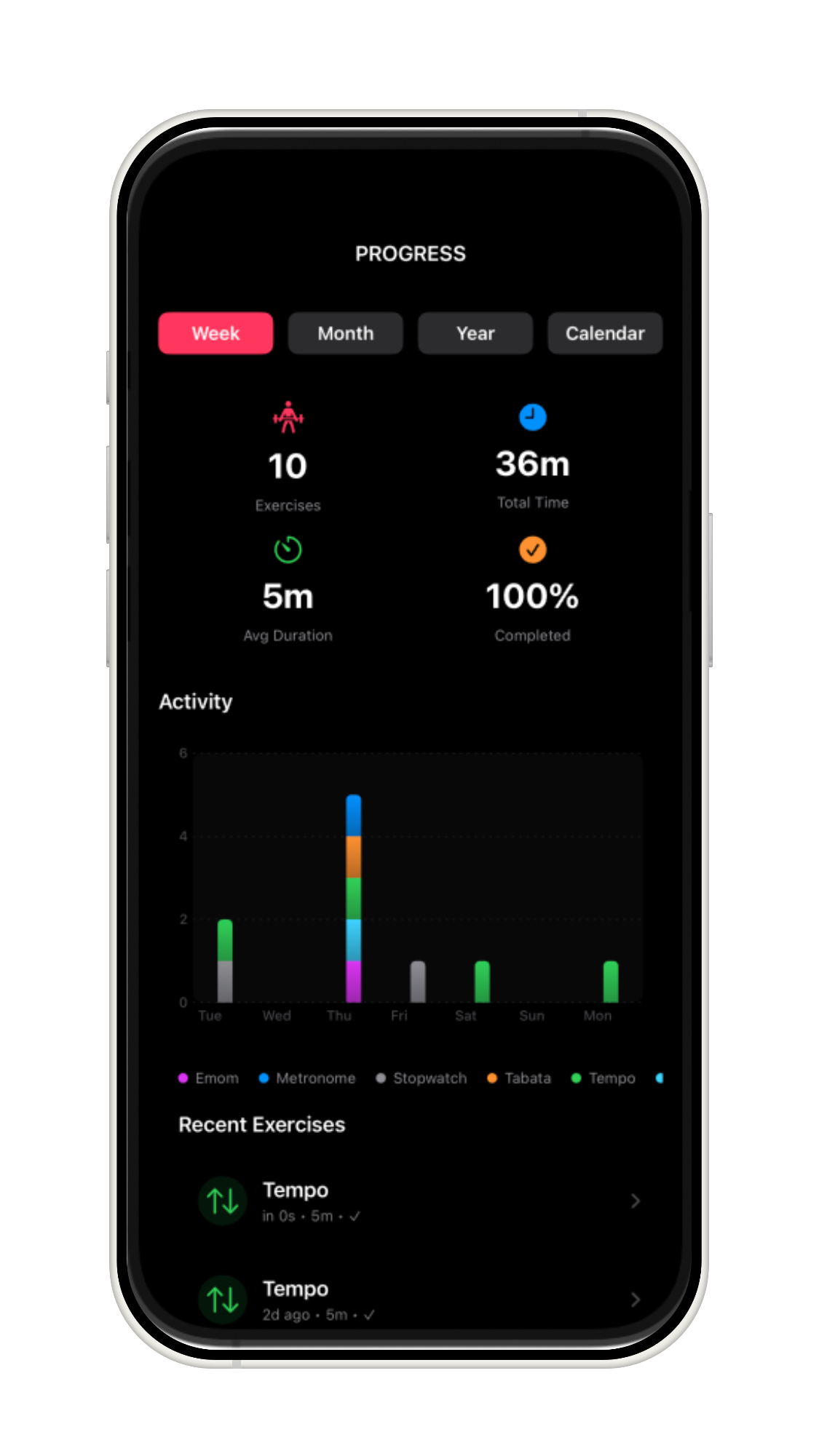
Insights is your workout history and analytics tab. Every Playlist run and every standalone tool session is recorded automatically with a start time, completion state, and per-exercise duration — there’s nothing to turn on. Use it to see whether you’re actually hitting the sessions you planned, not just whether you meant to.
Switch between five time ranges with a tap:
| Range | Covers | Chart grouped by |
|---|---|---|
| Week | Last 7 days | Day |
| Month | Last 30 days | Week |
| Year | Last 365 days | Month |
| Calendar | A calendar month you pick | — (heat grid only; see Calendar View) |
| Custom | A start/end date range you pick | Day (60 days or less) or Week (longer) |
Four headline numbers summarize the active range: total completed exercises, total time spent training, average session duration, and completion rate (completed sessions out of all sessions started in that range) — so an abandoned Playlist still counts toward “completed exercises” for whatever you finished before stopping, rather than being thrown out entirely. Below that, a stacked bar chart breaks activity out by tool for the active range, with a lighter, faded segment stacked on top of each bar for Playlist runs you didn’t finish — sized by the share of planned sets you actually completed, so stopping partway through even a single multi-set exercise (say, 3 of 5 Tabata sets) still shows up as real progress instead of nothing:
| Tool | Chart color |
|---|---|
| Tempo | Green |
| Metronome | Blue |
| Tabata | Orange |
| EMOM | Purple |
| Timer | Cyan |
Below the chart, your 8 most recent sessions expand inline for per-session detail; tap “All Exercises” for the full paginated history once you have more than that. Long-press any session to delete it (with a confirmation first). Pull down to refresh and pick up anything recorded elsewhere, like a session logged from the Watch.
Calendar View
The Calendar range shows a heat grid for the month you’re viewing — each day shaded by how many completed exercises happened that day, relative to the busiest day in that month, so the grid rescales itself per month rather than against some fixed number. Even a single completed exercise keeps a day visibly shaded rather than nearly invisible. Today’s cell is highlighted, and future days are dimmed and not tappable.
Tap the dashed-rectangle button in the calendar header to switch between two ways of interacting with the grid:
- Inspect (default) — tap any day with activity to see every session recorded that day.
- Range — tap a day to mark the start, tap a second day to mark the end; the days between get a tinted fill. Tap Apply to switch the whole tab to that custom range, or Clear to cancel. Tapping a single day and pressing Apply gives you a one-day range.
Scheduled Workouts & Reminders Dashboard
When Playlist Goal Scheduling is turned on, a Scheduled Workouts section appears at the top of Insights — above the history controls — so upcoming obligations surface before historical analytics do. One card appears per playlist with an enabled schedule, each showing its progress toward the current period’s goal, its streak, and when its next reminder is due.
You don’t have to finish a Playlist start-to-finish to get credit for it: ending a session early still counts as a full session toward the goal once you’ve completed at least half of its planned sets, so stopping after most of a workout still keeps your streak and progress on track instead of resetting to zero. In the Insights activity chart, each unfinished session appears as its own lighter segment, shaded by how many of its sets you completed, so two partial runs on the same day stay distinct.
Each card is colored to give you an at-a-glance read on where you stand:
| Color | Meaning |
|---|---|
| Green | Goal met for the current period, or comfortably on pace |
| Orange | Slightly behind pace — also shown instead of red once the period has effectively ended but you still finished most of the sessions (3 out of 4, say) |
| Red | Meaningfully behind pace for the current period |
Tap a card to open the full detail sheet: a progress ring for the current period, your streak of consecutive periods meeting the goal, the exact next-reminder time (shown with the day of the week spelled out, like “Mon, May 25 at 1:12 PM,” so it’s unambiguous even across an overnight schedule), and three actions — Mark Complete, View Playlist, and View Schedule (opens the same schedule editor described in Goal Scheduling & Reminders, pre-filled with your current settings). Editing the schedule from here brings you right back to this detail view afterward rather than bouncing you out to the main Insights screen.
A “Why am I seeing this?” button opens a plain-language explanation of exactly why the scheduler picked that reminder time. This explanation is always based on the same facts the scheduler used — it never uses AI-written wording, even when AI-assisted reminders are on, so you can rely on it.
Below the card detail, an Upcoming Reminders week calendar shows the next 7 days, shading your preferred days and preferred time windows and marking exactly when each scheduled notification for that playlist will fire. Tap a marker to see that notification’s details.
Filtering, Search & Export
Narrow the history list with any combination of filters: one or more tools (Tempo, Metronome, Tabata, EMOM, Timer), completed-only, Playlists-only, and a text search that matches against playlist names, exercise names, and the tool itself. A “Clear” option appears whenever any filter is active.
Export the currently filtered history — not your entire history, just whatever the active filters and time range are showing — as a CSV or JSON file from the share button. Both open in spreadsheet and data tools:
- CSV has one row per session: date, time, session type, playlist name, duration in minutes, exercise count, and completion state.
- JSON has the same information plus a detailed list of every exercise in each session (timer, name, duration, and whether it was completed). It’s mainly useful if you want to analyze your data with other software.
Export is a plain share-sheet action — the file goes wherever you send it (Files, Mail, AirDrop, a third-party app) and isn’t uploaded anywhere by FitKit Pro itself.
Evidence
The Evidence tab explains the research-based methodology behind FitKit Pro’s timing protocols. It is the place to review why a tool is structured the way it is, how a protocol is commonly applied, and where the app’s defaults come from.
- Overview summarizes the training or rehabilitation concept behind the timing format.
- Applications describes practical use cases, such as cadence work for Metronome, movement-control work for Tempo, or interval conditioning for Tabata and EMOM.
- Important notices call out safety and scope limits so the app is used as a timing aid rather than medical advice.
- Scientific references list supporting sources for users who want to read beyond the in-app summary.
Evidence content is informational. It does not diagnose, prescribe, or replace a clinician, coach, or other qualified professional.
Settings
Use Settings to control the parts of FitKit Pro that should behave consistently across tools: appearance, sound, countdown behavior, Playlist Sync, goals, tab order, and beta features. During an active workout, the compact settings overlay focuses on the controls you are most likely to need mid-session: sound, timer defaults, and tab order.
| Menu | What it controls |
|---|---|
| Appearance | Automatic, Light, or Dark mode. |
| Sound & Haptics | Mute/unmute, app cue volume, voice announcements, and haptic feedback. |
| Timer Defaults | The shared 0–10 second start countdown, whether +/− buttons are shown, whether quick presets are shown, and an optional Tap to pause/resume toggle (off by default) that lets you tap the progress circle during a workout to pause or resume instead of using the play/pause button. |
| Clinic Display Mode | On iPad, gives the running screens a much larger countdown, bolder phase labels, and a full-screen phase-color background so they stay readable when the iPad is propped up across the room. On by default; iPhone is unaffected. |
| Playlist Sync | The device-level iCloud Playlist Sync toggle, optional Videos & Photos sync, sync status, and the one-time choice for existing local playlists. |
| Workout Goals | Live Activities, Save to Health, and the personalized message tone used for generated reminder copy when supported on the device. |
| Tab Order | The order of timing tabs and sidebar items. This guide uses Tempo, Metronome, Tabata, EMOM, Timer, Playlist, Insights, Evidence as the reference order. |
| Beta Features | Experimental options such as voice commands, showing tips again, advanced reminders, and Dynamic Island reminder controls. |
Playlist Sync
When you first turn on iCloud Playlist Sync, existing local playlists are not silently uploaded. FitKit Pro asks whether you want to choose playlists, sync all existing playlists, or sync only new playlists going forward. Same-name playlists are not merged; each playlist keeps its own identity. Use Sync Videos & Photos when you want encrypted step media to sync too; otherwise only playlist structure and settings sync.
Workout Goals, Live Activities, and Health
Live Activities shows active workouts on the Lock Screen and Dynamic Island. Save to Health writes completed timing sessions to Apple Health when enabled; it is off by default and FitKit Pro does not read Apple Health data. Personalized Message Tone affects generated reminder wording only, not the deterministic schedule or urgency rules.
Privacy-sensitive controls
FitKit Pro does not require an account, and most app data stays on your device. Push notifications, subscription validation, Playlist iCloud Sync, and Playlist Goal Scheduling reminders use the limited services described in the Privacy Policy. Playlist iCloud Sync uses your own private iCloud storage, run by Apple, not a FitKit Pro server.
Widgets & Live Activity
Home-screen and Lock Screen widgets, plus a Dynamic Island Live Activity on supported iPhones, show the current step and time remaining without opening the app. A Live Activity auto-expires after 20 minutes, and stale activities are cleaned up the next time you foreground the app.
Timing cues keep playing in the background and override your device’s mute switch, so a locked screen never costs you a rep. iOS grants roughly 3 minutes of background execution time per session; FitKit Pro requests a background task while a tool is actively running to make use of it.
Apple Watch
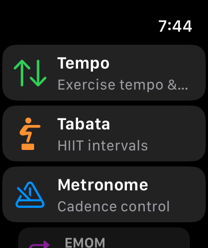
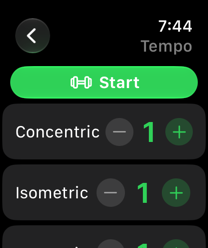
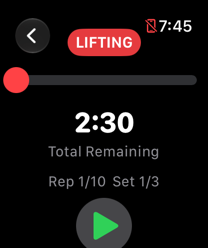
The standalone FitKit Watch app mirrors your timing tools on your wrist. Settings and your saved Playlist library sync between iPhone and Watch, and a workout completed on the Watch syncs back to your iPhone’s history.
Save to Health
Turn on Save to Health in Settings and FitKit Pro will write a workout entry — activity type and start/end time — to Apple Health after you finish a session. This is a write-only integration: FitKit Pro never reads Health data, and the toggle is off by default.
Subscriptions
FitKit Pro offers monthly, annual, and lifetime purchase options, billed through your Apple ID and validated by RevenueCat. Every new install includes a 2-day free trial that starts the first time you open the app. After the trial, unlocking all of the tools requires one of these options. A program your therapist sent with RehabKit Pro playback included is the exception: it keeps running for free, with no subscription, even after the trial ends (see Playlists From Your Therapist).
Use Restore Purchases in Settings after reinstalling or moving to a new device. If restore doesn’t pick up your subscription, confirm you’re online and signed into the Apple ID that made the original purchase — see Troubleshooting.
Troubleshooting
No sound, or sound cuts out
FitKit Pro is designed to play its cues even when your device’s silent switch is on. If you still don’t hear cues, check the volume setting in FitKit Pro’s Settings and confirm your device’s physical volume isn’t at zero.
A Goal Scheduling reminder didn’t fire
Backend-assisted reminders need network access to register and need notification permission granted in iOS Settings. If a reminder is missed, FitKit Pro’s locally scheduled fallback notification should still fire as a safety net.
Widgets or the Watch app look stale
Open FitKit Pro to refresh cached state, or open the Watch app with the Watch connected to refresh the sync. Background refresh timing for widgets and complications is ultimately controlled by iOS and watchOS, not the app.
Purchases won’t restore
Open Settings in FitKit Pro and tap Restore Purchases. This requires network access and the same Apple ID used for the original purchase. If the app still shows the wrong plan after Apple confirms the subscription, contact support@SchumacherPT.com with your device, app version, and approximately when you tried restoring.
More Guide Chapters
This guide covers Tempo, Metronome, Tabata, EMOM, Timer, Playlist, Insights, Evidence, Settings, widgets, Apple Watch, subscriptions, and troubleshooting. Use the companion pages below for the visual Quick Start, tool videos, and FitKit Pro’s legal and privacy documents.