1Open Send
- In the Playlist tab, tap the playlist you want to send.
- Tap Send or Receive Playlist (the document with an up arrow, top right).
- Tap Send.
A program you received from a therapist can’t be forwarded, so Send won’t appear for it.
2Tour of the Send screen
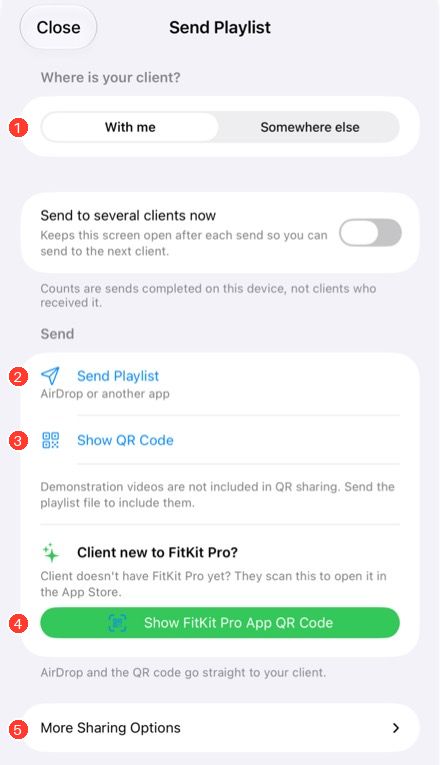
- Where is your client? The screen says “client”; the steps are the same when you share a workout with a friend. With me is for someone beside you (AirDrop or QR code). Somewhere else is for Messages, Mail or Files; the QR code is hidden.
- Send Playlist opens the iOS share sheet: AirDrop, Messages, Mail, Files and more.
- Show QR Code shows a code the other person scans. It works for smaller playlists without videos or photos.
- Show FitKit Pro App QR Code is for someone who doesn’t have the app yet (see step 5).
- More Sharing Options has Copy Playlist Attachment and Save to Files.
3Send a file (best choice, includes videos and photos)
Tap Send Playlist, choose where to send it (AirDrop, Messages, Mail, Files…) and finish the send. The other person opens the .fitkitplaylist file you sent.
Open More Sharing Options for two more choices:
- Copy Playlist Attachment copies the file itself, not a link. Paste it into an app that accepts attachments.
- Save to Files saves the file so you can attach it from Files.
Some third-party apps refuse this kind of file. If that happens, pick another destination.
4Show a QR code
A QR code is quick when the other person is beside you, but it can’t carry videos or photos and has a size limit. If Show QR Code is grayed out, the reason is written beneath it — send the file instead.
The other person scans it with the iPhone Camera app and follows the link, or opens Receive in the app and taps Scan with Camera. Step by step for the person receiving
5Help someone install FitKit Pro
Look for Client new to FitKit Pro? on the Send screen.
- Beside you: tap Show FitKit Pro App QR Code. They scan it to open the App Store.
- Somewhere else: tap Copy Install Link and paste it into your message.
The install code or link only gets them the app. Send the playlist afterward.
6What the other person needs
When you share a playlist, the other person gets an editable copy. In FitKit Pro they need their own free trial or paid access to run or edit it. Sharing does not give them free playback after their trial.
The exception is a program sent by a therapist with RehabKit Pro. FitKit Pro runs it for free, even after the trial ends.
7Send to several people
Turn on Send to several clients now to keep the screen open after each send, then tap Send to Another Client. The count shows sends you completed, not people who received them.
8Privacy and troubleshooting
- Messages, email and other services handle the file you send. In a group message or an email with visible recipients, people can see each other — send separately when privacy matters.
- Don’t put a client’s name inside the playlist.
- A program you already delivered can’t be taken back by deleting your own copy.
- If an action is unavailable, read the reason beneath it. A missing name can be filled in, but nothing can make an oversized QR code fit.