1Open the Receive screen
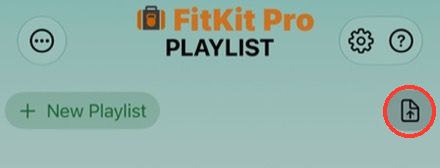
In the Playlist tab, tap Send or Receive Playlist (the document with an up arrow, top right), then tap Receive.
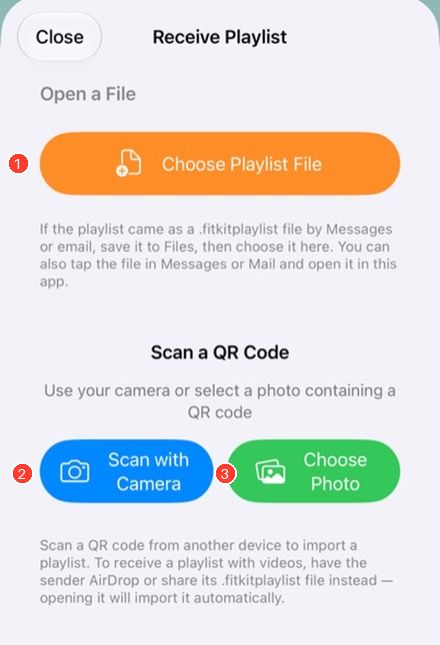
- Choose Playlist File — for a .fitkitplaylist file you saved.
- Scan with Camera — scan a QR code from another screen.
- Choose Photo — pick a saved screenshot or photo of a QR code.
2If you were sent a file
- Tap the .fitkitplaylist attachment in Messages, Mail or Files and open it in your app. If both RehabKit and FitKit Pro are installed, iOS may ask which to use; FitKit Pro is the usual choice for a program from a therapist.
- Or save the attachment to Files, open Receive, tap Choose Playlist File and pick it.
- For AirDrop, accept the file and choose the app if asked.
Use a file whenever the playlist has videos or photos.
3If you were sent a QR code
There are two ways. Either works for the same code.
The Camera app (needs internet)
- Open the iPhone Camera app and point it at the QR code on the other device.
- Tap the link that appears. This needs an internet connection.
- On the page that opens, tap Open in FitKit Pro (the first green button), or choose RehabKit if that is the app you use.
- Check the playlist in the app and accept it if you know the sender.
If the app isn’t installed yet, install it from the page, then go back to the same page and tap Open again. Installing alone does not finish the import.
Inside the app (works offline)
- Open Receive and tap Scan with Camera. Allow camera access if asked.
- Keep the whole code in view and steady. Use the zoom buttons or pinch if needed.
- For a saved screenshot, tap Choose Photo instead.
If the Camera app says “No usable data found”, use the scanner inside the app. Older codes are not web links, so only the in-app scanner can read them.
4Check before you add it
After you open or scan something, the app may ask you to confirm. Here is what each message means.
- Add Playlist
- Adds an editable copy. Check the name, then add it or cancel. Some routes add it without asking.
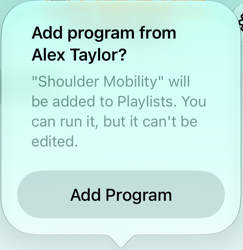
- Add Program
- A program from a therapist. Check the sender and name. You can run it but not edit it.
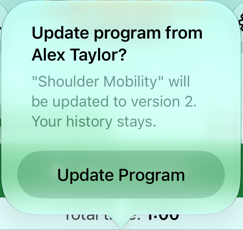
- Update Program
- The sender made a newer version. Accept it to update the program; its history is kept.
- Replace My Copy / Keep Both
- You changed your copy and a newer version arrived. Replace your copy, or keep yours next to the new one.
- Replace with Clinician Program / Keep Both
- You already have an editable copy. Replace it with the read-only program (history is kept), or keep both.
- Cancel
- Closes the message without adding or replacing anything.
- Already have this program
- You have the latest version. Use the one you have.
- Older version
- What you were sent is older than what you have, so your newer one stays.
- Different or blocked sender
- The program was refused. Check with your therapist. Don’t delete your copy to get around it.
- Could not be verified
- The file may have changed after it was sent. It was not added. Ask for a fresh copy.
- Newer version of the app needed
- Update the app, then open or scan again.
- Could not be opened / invalid link
- The file or link may be damaged or incomplete. Ask for the original attachment or a new QR code.
If two senders share a name, a Sender ID appears. Confirm the sender with your therapist before you accept. In RehabKit, receiving your own signed playlist may select the original or offer Add Copy.
When it works, the playlist appears in the Playlist tab.
5What do I need to run it?
- An editable copy (ordinary share)
- In FitKit Pro you need your own trial or paid access to run or edit it. Importing it does not give you free playback after your trial.
- A program from a therapist with RehabKit Pro
- It is signed and read-only. Once FitKit Pro verifies it, you can run it without your own subscription, even after your trial ends, and even if the therapist’s Pro subscription ends. Other workouts and tools may need your own access. Ask the sender for changes.
Only the app that receives the program checks that it is genuine; a web page’s description alone doesn’t unlock anything.
6Start your playlist
Tap the playlist in the Playlist tab, then tap Start Playlist. For a prescribed program, follow your therapist’s instructions.
7If something goes wrong
- The app doesn’t open from the web page
- Install or update the app, return to the page and tap Open again, or use the scanner inside the app.
- The code won’t scan
- Keep the whole code visible, reduce glare, adjust distance or zoom and hold both devices steady. If it still fails, ask for a playlist file.
- I added it but can’t run it
- Check which kind it is (see step 5). An editable copy needs your own trial or paid access in FitKit Pro.
- Videos or photos are missing
- QR codes can’t carry them. Ask for the .fitkitplaylist file.