Choose the timer that matches what you’re about to do:
Metronome — a steady beat for running pace and repetitive drills. Let it run until you stop it, or set a time or number of beats.
Tempo — for strength exercises. Set how many seconds to lift, hold, lower, and rest, then choose your reps and sets. You can flip the order if your exercise starts with the lowering part.
Tabata — for interval training. Choose how long to work, how long to rest, and how many rounds. It starts at 30 seconds of work and 30 seconds of rest for 10 rounds; use 20 seconds of work, 10 seconds of rest, and 8 rounds for the classic Tabata.
Timer — choose For Time to see how long something takes, or Recovery to count down a rest. Recovery resets by itself when it reaches zero.
EMOM — “every minute on the minute.” Choose how long each round lasts, your reps, and your sets, and it keeps count. Turn on As Long As Possible to keep going until you decide to stop.
Step 2: Put It All Together with a Playlist
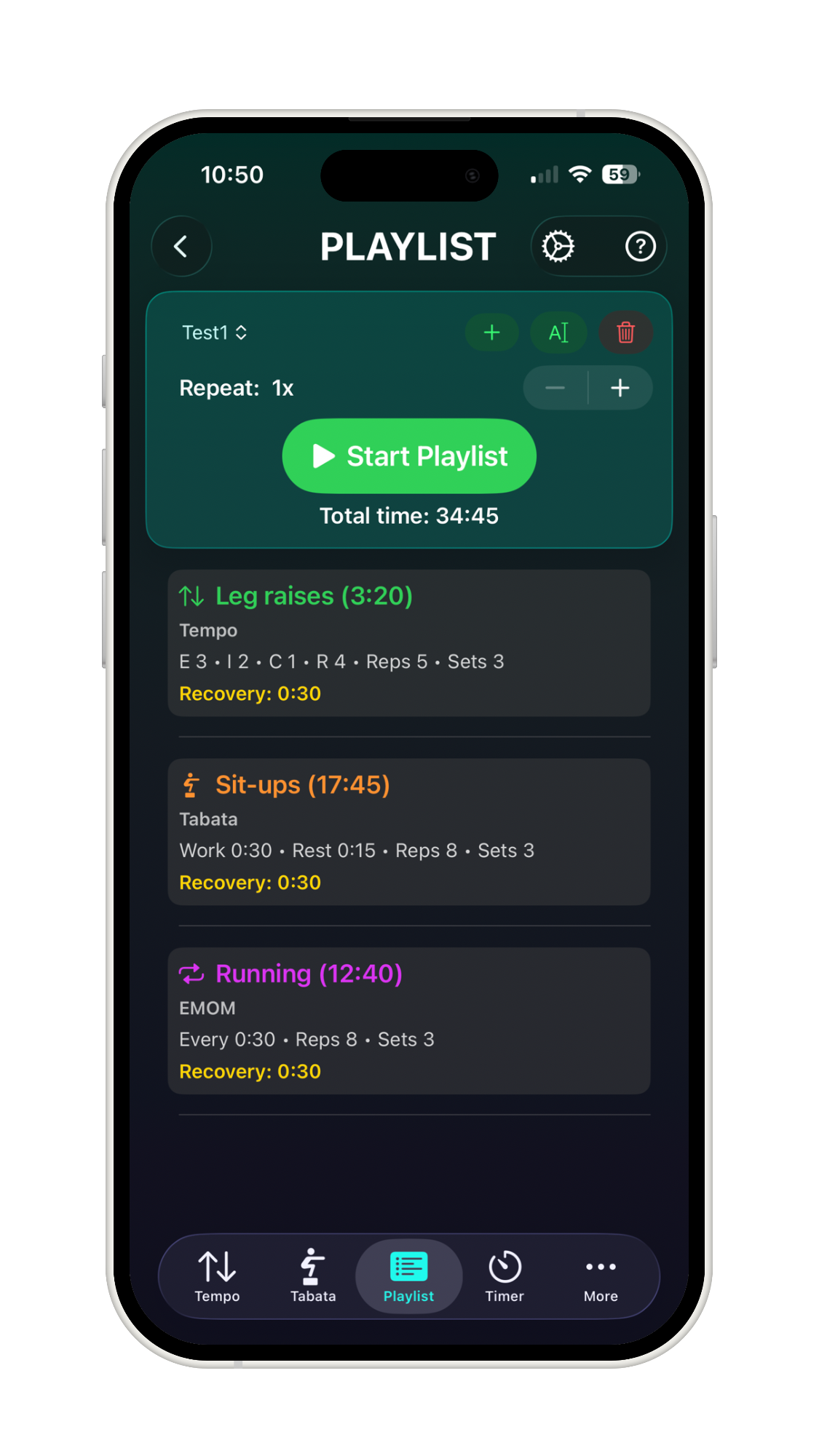
Once you’re comfortable with the timers, use Playlist to line them up into one workout. Repeat groups of exercises for several rounds, add a video or photo to show how each exercise is done, and start the whole thing with a single tap.
Playlist runs your whole workout in order, one tap at a time.
Helpful Settings
iCloud sync. To keep your workouts on more than one device, open Settings → Playlist Sync and turn on Sync Playlists with iCloud. Do the same on each device signed in with your Apple Account. Turn on Sync Videos & Photos if you want those to come along too.
Sound while your phone is locked. Nothing to set up — the beeps and beats keep playing with your screen locked or your phone in your pocket.
Works even on silent. Also automatic — you’ll still hear your cues if your phone’s silent switch is on. To change how loud they are, go to Settings → Sound & Haptics.
Apple Watch. Install the FitKit app on your Apple Watch to use the timers from your wrist. Your settings and saved workouts stay in sync with your iPhone.
Track Your Progress
Widgets. Your lock screen and Dynamic Island (on supported iPhones) show your remaining reps and time, so you don’t have to unlock your phone mid-set.
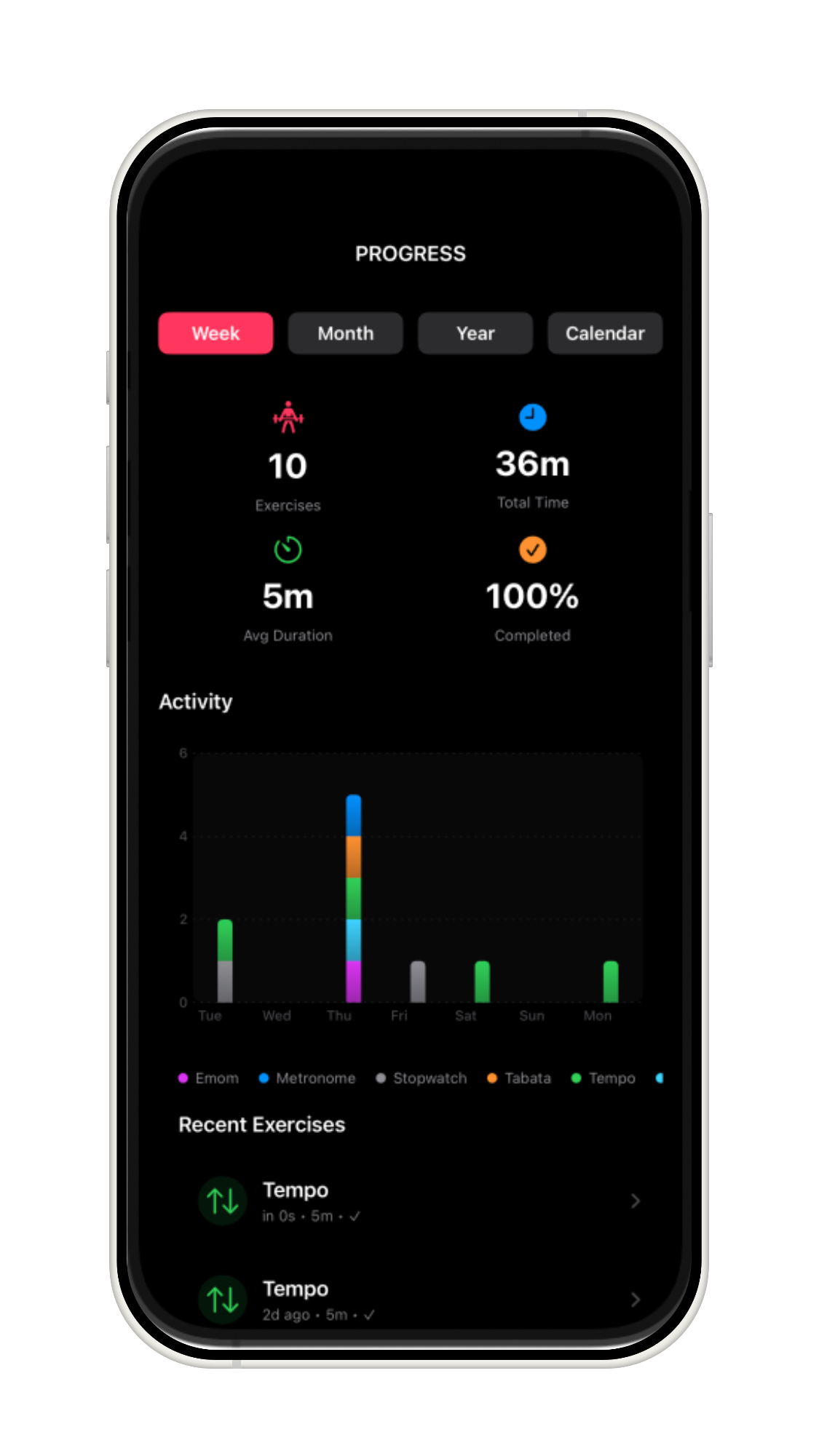
Insights tab. Every finished workout is saved automatically. Check the calendar to see how often you’re working out compared with your goal.
Insights shows how you’re doing against your goal.
Support & Resources
Watch it in action. Want to see a timer working before you try it? Jump straight to a short video demonstration:
Metronome, Tempo, Tabata, Timer, EMOM, or Playlist.
Direct help. Questions, feedback, or a bug to report? Email support@SchumacherPT.com and we’ll help.
For more detail on every timer, setting, and Playlist feature, see the User Guide.