1Open the Share menu
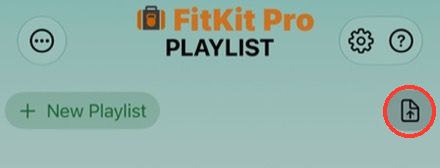
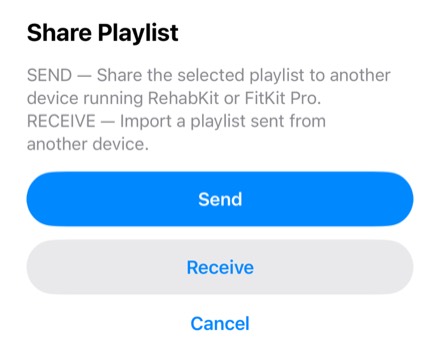
Go to the Playlist tab and tap Send or Receive Playlist — the document with an up arrow near the top right. (It is not the ? button.) To send a playlist, select it first.
2Which button do I tap?
- I want to give someone a playlist
- Tap Send. How to send a playlist
- Someone gave me a playlist
- Tap Receive. How to receive and run a playlist
- I don’t see Send
- Select one of your own playlists first. A program you received from a therapist can’t be forwarded. With no playlist selected, only Receive is offered.
3Good to know
- RehabKit and FitKit Pro can both send and receive playlists.
- Videos and photos travel only in a playlist file (AirDrop, Messages, Mail or Files). A QR code is too small to carry them.
- Both people should use the current version of their app.